Maintenance, installation and repair
A broad selection of system maintenance, deployment, troubleshooting and repair tools supports a range of maintenance tasks.
System maintenance, made simpler.
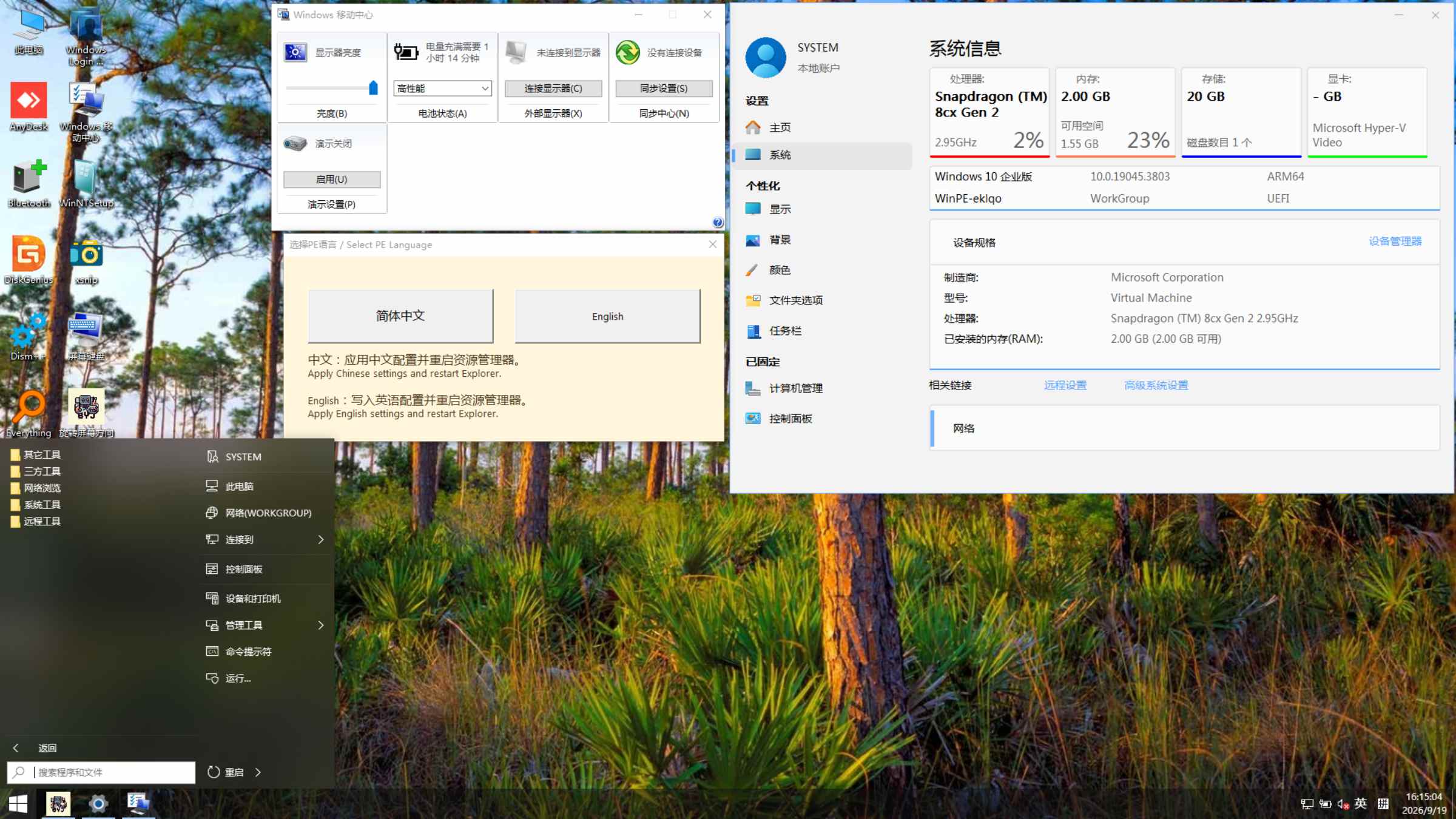
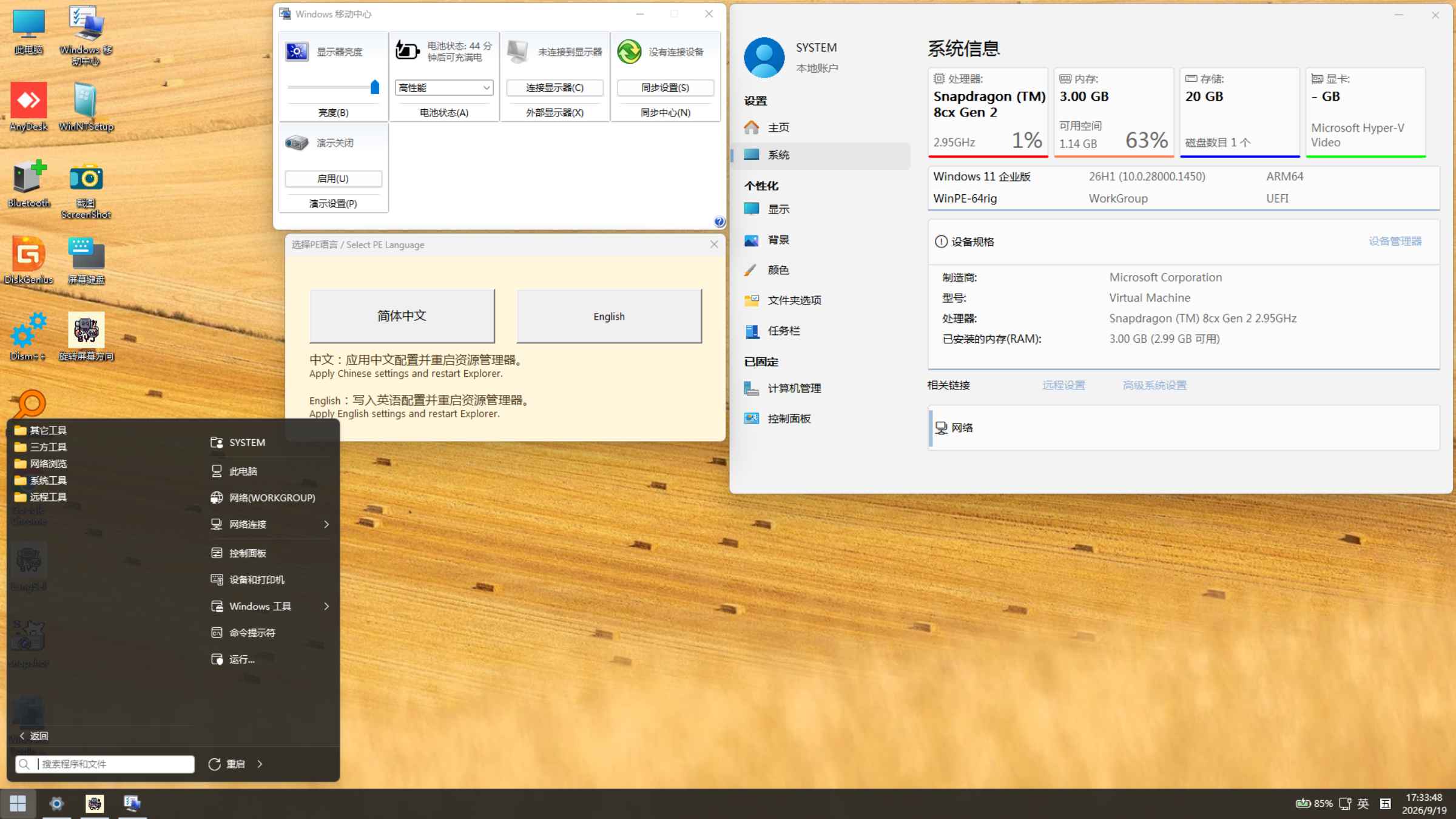
Switch between Chinese and English in PE
Wi-Fi and Bluetooth support
A full-featured, continuously maintained Windows PE environment for Arm devices.
System maintenance, installation, repair and device support for Arm devices.
BYDJ PE is a full-featured Windows PE environment focused on stability and reliability. The project preserves a comprehensive maintenance experience while continually improving performance and device compatibility.
A broad selection of system maintenance, deployment, troubleshooting and repair tools supports a range of maintenance tasks.
A professional team of 10+ members continuously maintains the project, improves features and adapts device support and compatibility.
V0.0.1: Supports x86 application emulation; x64 emulation is not included.
V1.5.0 / V3.0.1 / V4.0.1: Supports both x86 and x64 application emulation.
Applications must still meet their dependency requirements. Application emulation does not provide support for drivers of a different architecture.
Different Snapdragon platforms have different levels of instruction set support, while Microsoft is gradually reducing support for certain legacy instruction sets. To support a wider range of devices, we provide four kernel versions: V0.0.1, V1.5.0, V3.0.1, and V4.0.1.Devices with Snapdragon 850 and earlier are recommended to use V0.0.1. Devices from Snapdragon 850 to Snapdragon 8cx gen3 can use all four kernel versions: V0.0.1, V1.5.0, V3.0.1, and V4.0.1. Snapdragon X Elite devices are recommended to use V3.0.1 or V4.0.1, while Snapdragon X2 Elite devices are recommended to use V4.0.1. Please choose the appropriate version based on your specific device model for better compatibility and overall experience.
Supports incoming Remote Desktop connections to the PE desktop and outgoing connections to other computers as a Remote Desktop client. Connections require suitable network configuration and access permissions.
The actively maintained versions V0.0.1, V1.5.0, V3.0.1, and V4.0.1 automatically detect and adjust the screen orientation to the correct direction at startup. This provides a better landscape experience on certain 2-in-1 tablets whose default BIOS configuration uses portrait orientation.
Device compatibility and ongoing maintenance are key strengths of the project.BYDJ PE continually maintains compatibility to support as many hardware platforms with existing Windows boot support as possible.
Explore all four editions below. Screenshots retain the original interface; PE supports both Chinese and English.
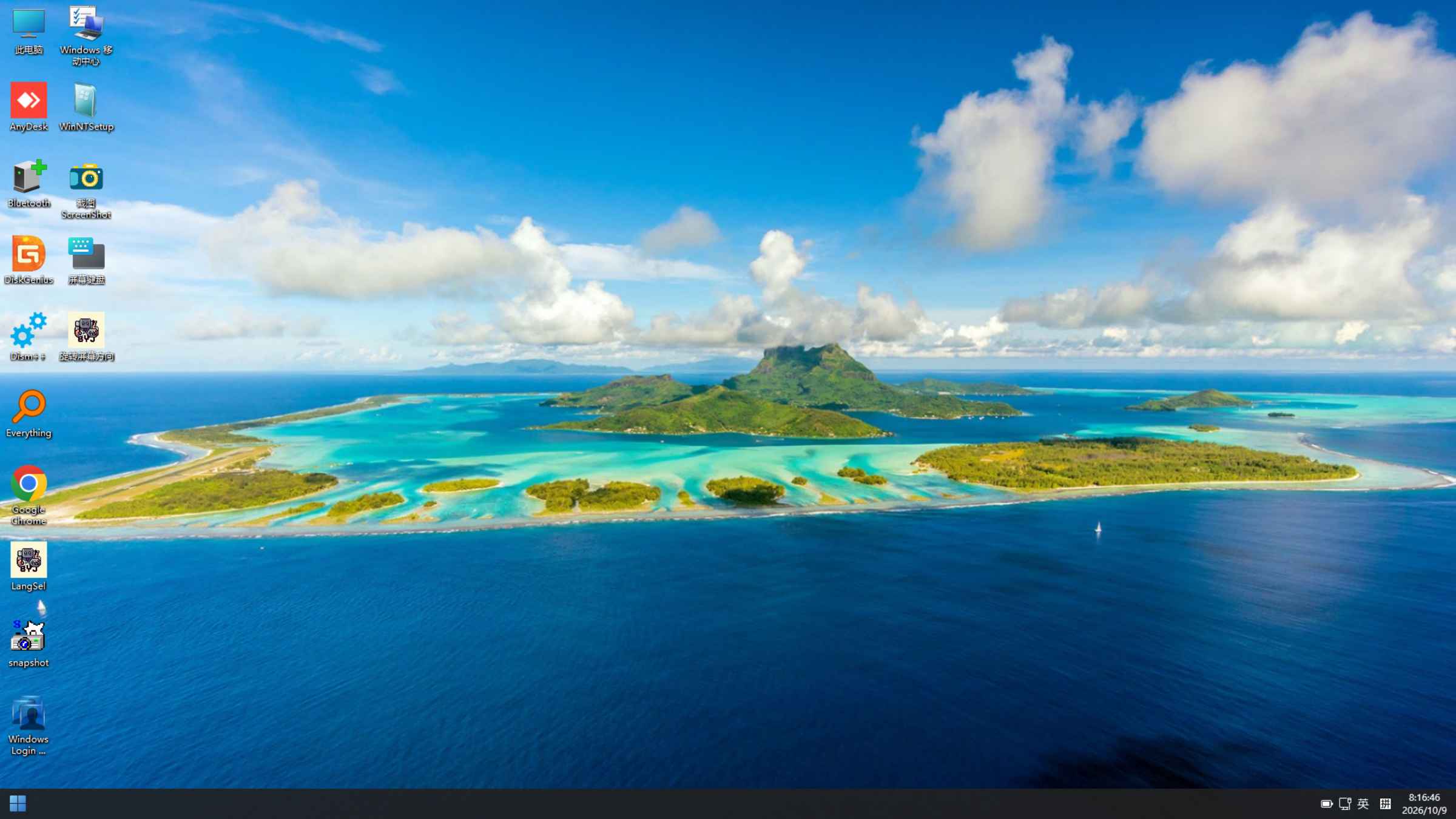
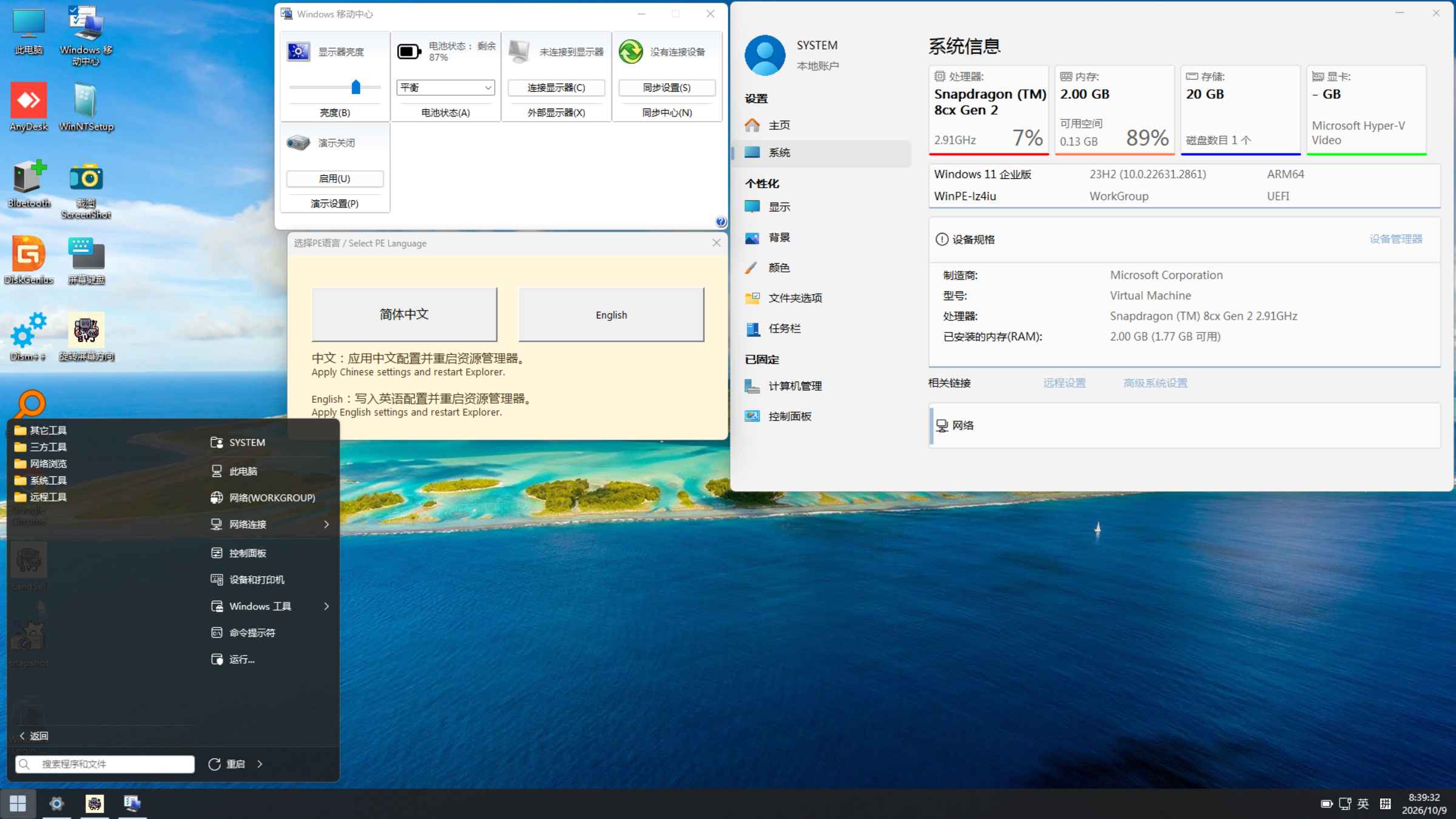
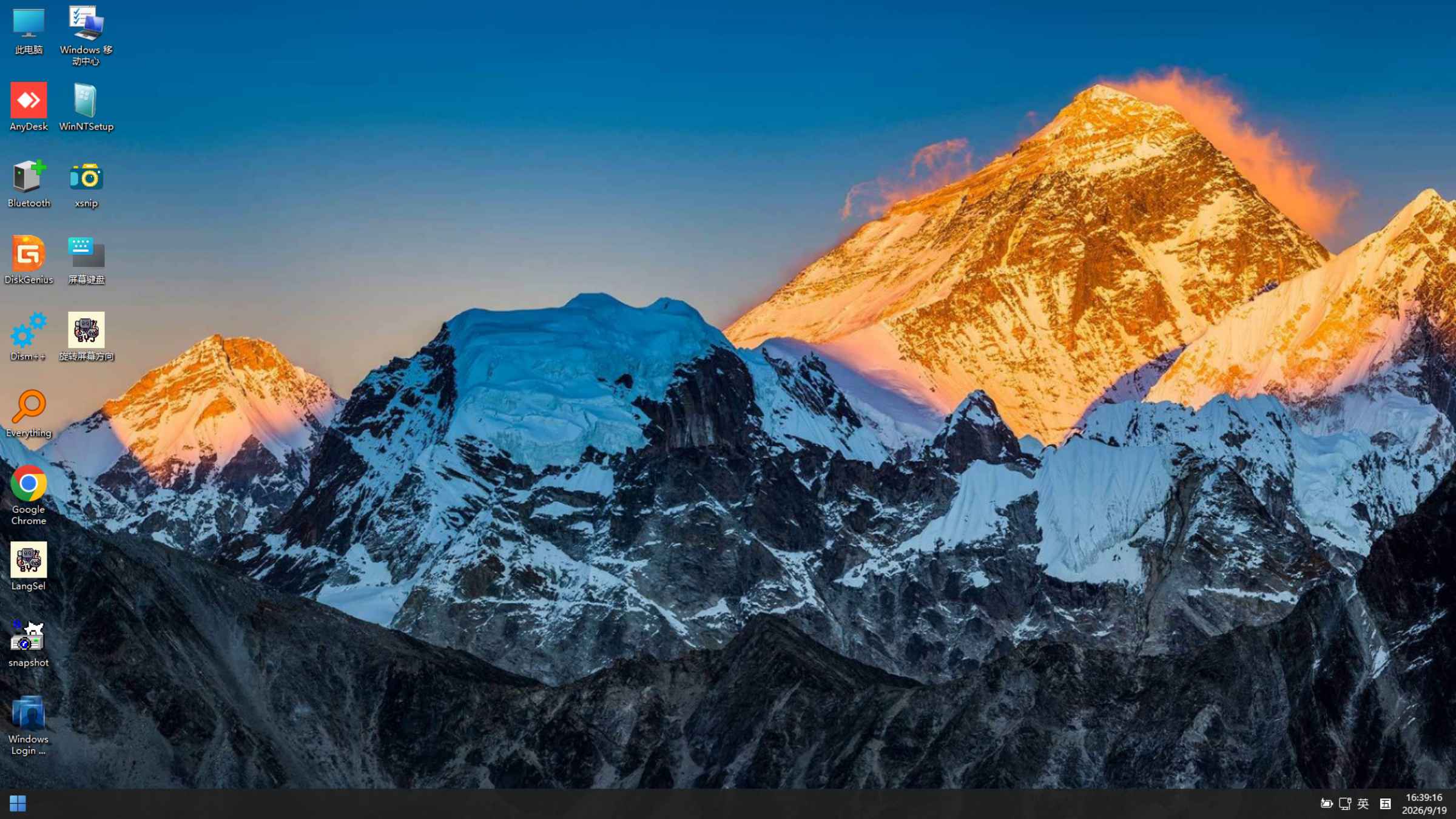
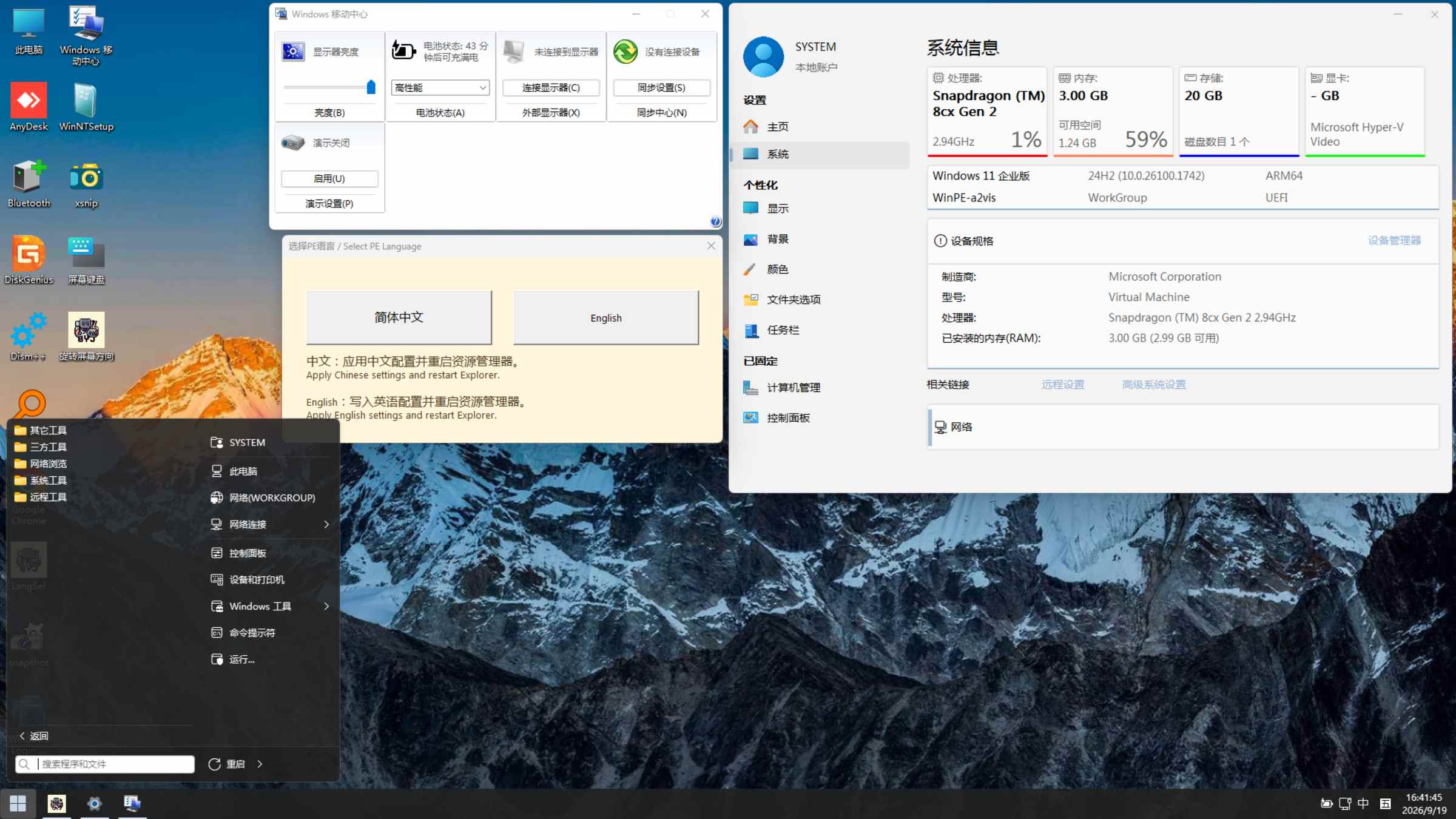
BYDJ PE can provide a PE environment where official or third-party support exists for booting a full Windows system and the device matches the selected PE build’s CPU architecture, kernel version, firmware and drivers. Full Windows boot support is a prerequisite for adaptation; each PE build and device combination still requires validation.
Snapdragon devices with boot support for the corresponding Windows version
Apple M-series virtual machine environments that support Windows on Arm
Raspberry Pi models with full Windows boot support
Project version recommendations: For devices older than Snapdragon 850, try V0.0.1. For Snapdragon X Elite, try V3.0.1 or V4.0.1. For Snapdragon X2 Elite, try V4.0.1. Choose a build that matches the device’s Windows boot solution and drivers.
Earlier devices: On devices older than Snapdragon 8cx Gen 2, try V0.0.1 when investigating compatibility.
Driver configuration: If startup produces a blue screen, first troubleshoot with an image that has no added nonessential drivers, then add drivers that match the device.
NVIDIA DGX Spark: BYDJ PE can also boot and run normally on this platform. Use a Windows boot solution and device drivers that match the selected PE build.
Information about running BYDJ PE on devices with China-developed processors is presented only as runtime feedback from enthusiast users for reference. Running inside a virtual machine and booting directly on physical hardware are different environments; the device model, PE build, boot method and driver configuration require separate verification.
Verify the applicability of each report for the specific device environment. Choose a PE build based on the device’s Windows boot requirements and its CPU architecture, kernel, firmware and drivers.
Hardware platforms continue to evolve, and Windows versions differ in their support for CPU instruction sets and hardware features. Some earlier Windows versions may not boot directly on newer processors when processor platform, firmware or driver support does not match. Older Windows versions may also require further adaptation for newer Snapdragon platforms.
Boot behavior must be assessed together with the Windows version, kernel, instruction set, firmware and drivers; the outcome alone does not establish the cause. BYDJ PE continually maintains and improves device support to broaden the range of usable hardware.
ISO boot behavior depends on the hardware platform, CPU instruction set, boot method, drivers and other compatibility conditions. Even an official Microsoft Windows ISO may be subject to these conditions on some devices.
An ISO that does not boot directly does not necessarily indicate an issue with PE or the system files. Check the file’s checksum, the Windows version and the device’s boot requirements together.
If the device already runs a supported Windows system and meets the installer’s requirements, first try the project installer to add PE to the device’s existing Windows boot environment, which can improve compatibility with the deployment and boot process. The installer still requires a matching CPU architecture, kernel version and device drivers.
For help confirming device support, use the feedback channels and include the device model, processor, PE version, boot method and exact message to help the maintenance team investigate and adapt support.
0. Updated the Windows base to Windows 11 26H1, build 10.0.28000.1.
1. Incorporates further work from the PE created by Wo Shi Xiao Qing Wa.
2. Improved system stability.
3. Improved responsiveness.
4. Added third-party maintenance tools and networking applications.
5. Added support for Snapdragon X2 Elite devices.
6. Updated the wallpaper.
0. Updated the Windows base to Windows 11 24H2, build 10.0.26100.1742.
1. Incorporates work from the PE created by Wo Shi Xiao Qing Wa.
2. Improved system stability.
3. Improved responsiveness.
4. Added a wider range of third-party maintenance tools and networking applications.
5. Restored Bluetooth support.
6. Added support for Snapdragon X Elite devices.
7. Updated the wallpaper.
1. Attempted to add Snapdragon X support; testing at the time showed that this release had not yet completed adaptation for these devices.
2. Added compatibility with Microsoft’s BlackLotus-related security updates.
3. Reduced the number of background processes at startup.
4. Fixed an issue that prevented the ISO from booting (2024.06.15).
5. Updated the wallpaper.
1. Rebuilt PE to improve responsiveness and stability.
2. Added Wi-Fi support; no web browser was included.
3. Added maintenance applications.
4. Updated the wallpaper.
1. Changed the boot animation to the Windows 11 style.
2. Switched to Windows 11-style mouse pointers.
3. Added WinXShell for adjusting display orientation, scaling, resolution and other settings from the desktop context menu.
4. Fixed a crash when opening Services from Computer Management.
5. Fixed black screens triggered by certain shortcuts.
6. Refined the Start menu.
7. Refined context menus.
8. Disabled File Explorer’s compact view by default.
9. Updated the wallpaper.
1. Fixed an issue that prevented drivers from taking effect.
2. Added battery level display.
3. Added graphics driver support for a smoother interface. You must import the appropriate graphics driver yourself.
4. Disabled automatic screen rotation at startup. Use the desktop shortcut for screen rotation to change the orientation.Historical note: this entry describes V1.3 only. The currently maintained V0.0.1, V1.5.0, V3.0.1 and V4.0.1 builds all support automatic screen orientation detection and adjustment.
5. Refined the taskbar.
6. Updated the wallpaper.
1. Download the ISO image, or download and extract the ZIP archive and run its EXE installer to add PE to your system.
2. Refined File Explorer.
3. Fixed an error when opening images.
4. Removed approximately 23 startup processes.
5. Fixed the display of shortcut names in the Start menu.
6. Updated the wallpaper.
1. Switched to PECMD for launching File Explorer.
2. Added automatic detection of screen orientation from driver information. A Command Prompt window may briefly appear while detection runs at startup; no action is needed.
3. Fixed the Shut down and Restart buttons in the Start menu.
4. Refined File Explorer.
5. Fixed an issue that prevented the ISO from booting.
6. Updated the wallpaper.
1. Initial project announcement.
Use the wallpaper as a visual reference. The last four entries are the current releases.
V1.0 — Green
V1.1 — Pink
V1.2 — White
V1.3 — Blue
V1.4 — Purple
V2.0 — Yellow
V2.0.1 — Red
V3.0.0 — Blue and green
V4.0.0 — A house surrounded by flowers
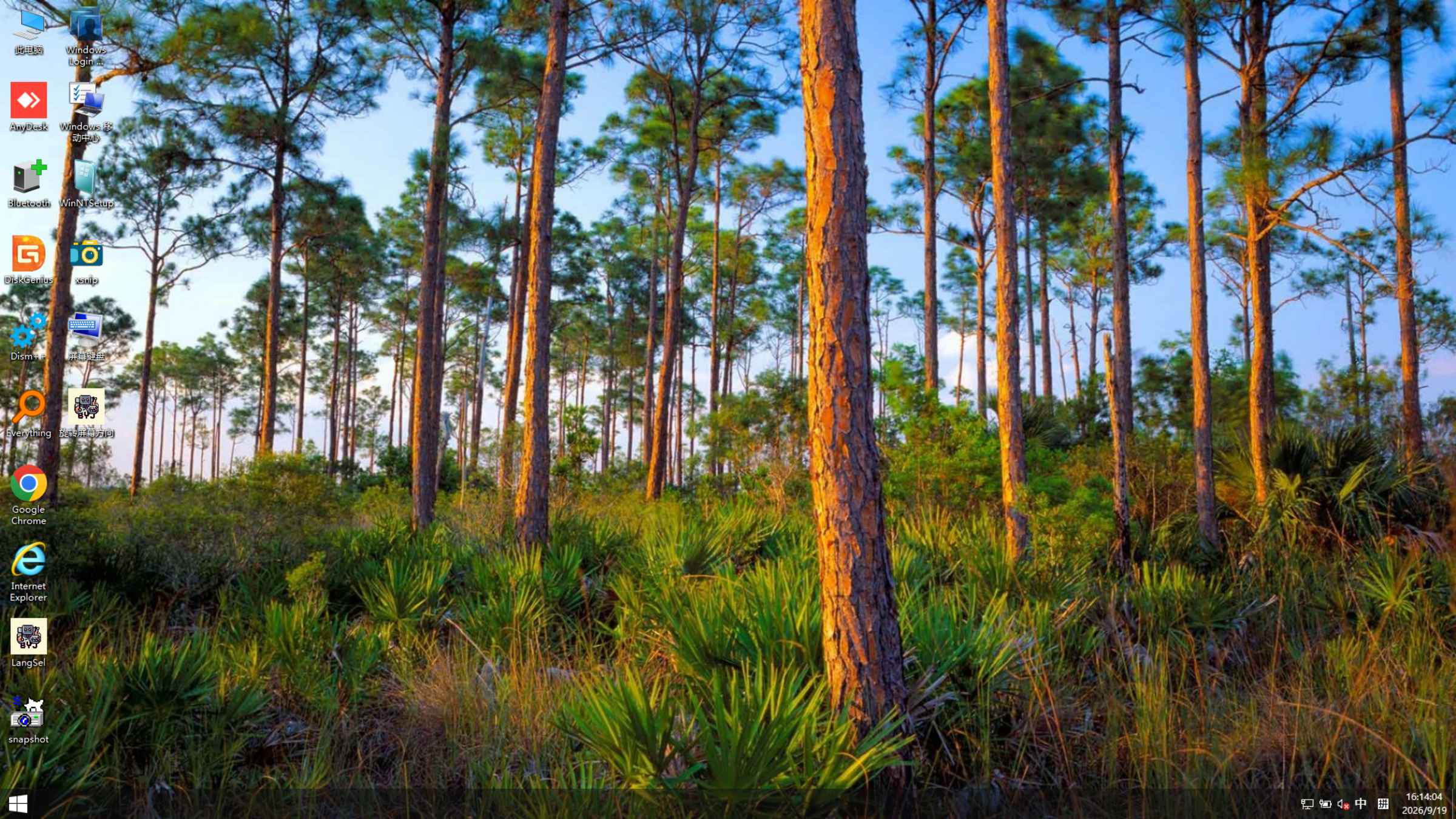
V0.0.1 — A forest landscape
V3.0.1 — A mountain landscape
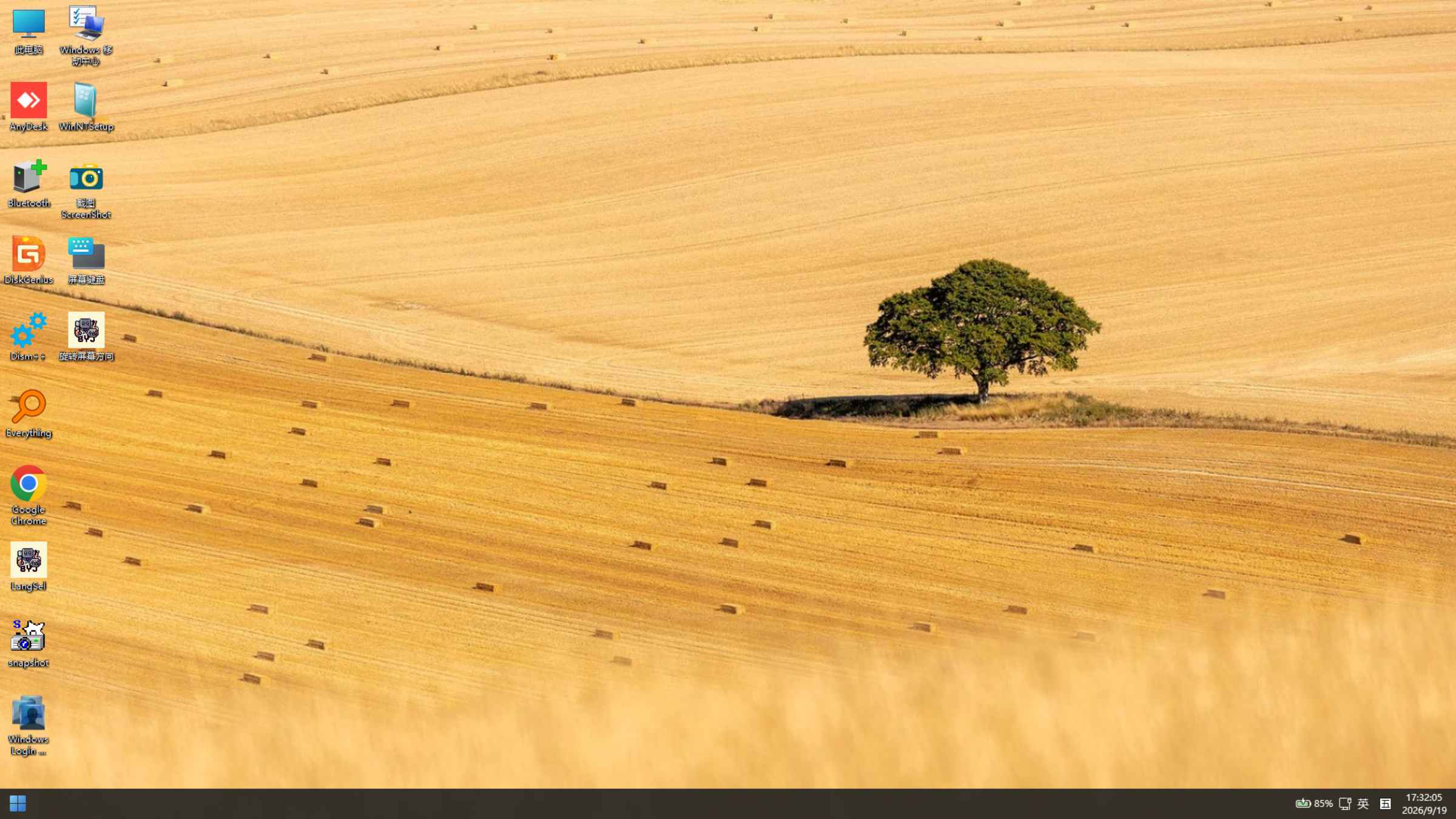
V4.0.1 — A golden wheat field
V1.5.0 — A tropical island and lagoon
For a visual reference, visit the Versions & Wallpapers page, which includes wallpapers from current and historical releases.
Use a currently maintained release whenever possible. If you need an older version for troubleshooting, obtain it from a trusted source to avoid unauthorized modifications. Historical releases are publicly available as described below.
Obtain project authorization before publicly distributing modified versions of BYDJ PE. Modifications may be used for internal testing; public distribution must meet the applicable authorization requirements.
If you confirm that your image is a modified version publicly distributed without authorization, stop using it and delete it. Obtain a copy from the project’s release channels so that its source and maintenance information can be checked.
One maintainer is currently authorized:
Some security tools may display an alert for the installer. Check the package source and checksum, review the alert, and follow the installation guide once you have confirmed the package.
The installer adds PE to an existing Windows boot environment. Back up important data and boot configuration before proceeding. If startup does not complete, investigate the device model, PE version, boot method and drivers, and contact the maintenance team through the feedback channels if needed.
Before using an unfamiliar tool, read its documentation or seek qualified assistance and back up important data. Understand the steps and their effects before installation, maintenance or repair. You are responsible for the operations you perform and their results.
Official BYDJ PE releases contain no ads, paid features, promotional bundles or unapproved changes to browser settings. Obtain files from trusted release channels and verify their checksums. If you need official Microsoft installation media, obtain it from Microsoft’s website.
Copyright in third-party materials and components referenced on this site remains with the respective rights holders. Use each material and component under its applicable license. Windows use and licensing requirements are governed by the relevant Microsoft license terms.